SummitProTHE TEACHING DAY, CONNECTED

FOR THE PEOPLE WHO TEACH THE MOUNTAIN

Every lesson
adds to
the next.

Lesson details. Instructor feedback. Individual progress. A shared teaching workflow, from the first meeting to the next visit.

Real screens. Fictional participants. Verified demonstration build.

01 / THE INSTRUCTOR
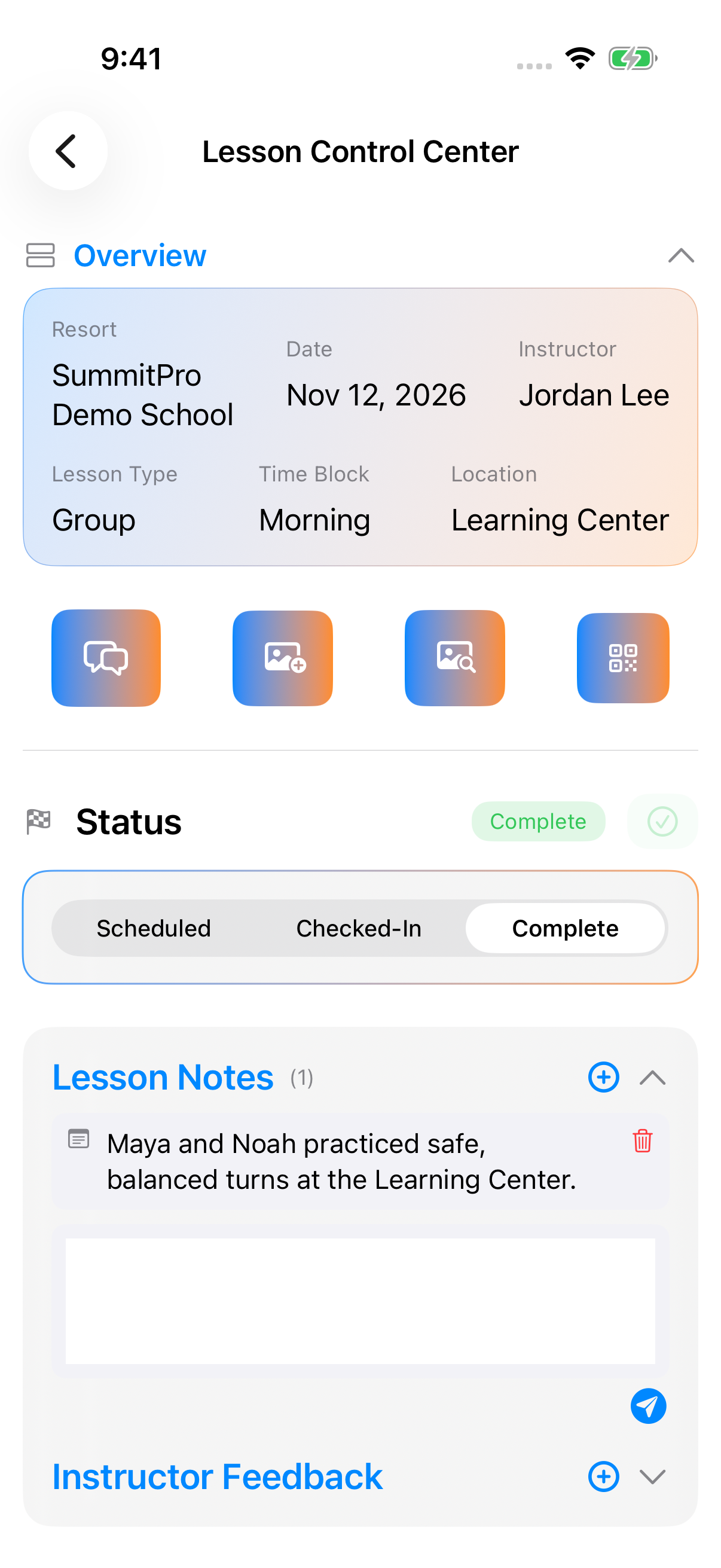
iPhone lesson control center showing Jordan Lee's completed lesson and saved note
A lesson worth carrying forward.Notes saved. Lesson complete.
Instructor → Student → Family → ManagerONE FICTIONAL LESSON. A CONNECTED STORY.

ONE APP. THREE PERSPECTIVES.

Find your role.
Follow the whole flow.

Explore how SummitPro works on iPhone—from organizing a ski school to teaching a lesson and following a student’s progress.

RUN THE SCHOOL · iOS

From the daily roster to better teaching.

Organize the day, match students with instructors, and turn a completed lesson into useful coaching. Follow the ski-school administrator’s path through the iOS app.

Start here

Sign in → Manage a Ski School (Admin) → Join your resort → Admin dashboard

  1. Account → Role selection → Resort affiliation

    Join the right school

    • Choose “Manage a Ski School (Admin)” after creating your account.
    • Join the suggested resort, or choose from the resort suggestions. Your email must be on the resort’s admin allow list.
    • Once affiliated, open the admin dashboard to reach the school’s tools.

    What carries forward The resort provides the context for instructor management, team tools, announcements, and training.

  2. Admin dashboard → Assign Students

    Prepare the day’s assignments

    • Choose the lesson date. Narrow the roster by meeting location, lesson type, and time block.
    • Review scheduled students, guest students, and available instructors for that day.
    • Select the student or guest who needs an instructor.

    What carries forward A focused roster makes the next assignment clear.

  3. Assign Students → Select instructor → Save Match

    Match a student and instructor

    • Choose the instructor for the selected student or guest.
    • Tap “Save Match.” The button becomes available once both sides of the assignment are selected.
    • Review the confirmation showing the student-to-instructor match; the student selection then clears.

    What carries forward The saved assignment connects the participant to the instructor’s lesson.

  4. Manage Instructors → Instructor → Lesson

    Open the teaching record

    • Open an instructor from your resort’s list, then inspect their lesson history.
    • Choose a lesson and review its date, participants, status, and lesson notes.
    • Use that lesson’s context when reviewing instruction.

    What carries forward The evaluation is grounded in a particular lesson, rather than an isolated rating.

  5. Lesson → Evaluation → Save

    Evaluate the instruction

    • Rate Skiing Technique, Communication Skills, Safety Awareness, Punctuality, Lesson Engagement, and Overall Score on the 1–5 scales.
    • Add specific coaching notes and save the evaluation.
    • Reopen the evaluation to review the saved ratings, notes, and evaluation history.

    What carries forward Instructor evaluation remains separate from each student’s skill assessment.

  6. Admin dashboard → Team Tools / Announcements / Training

    Keep the school moving

    • Use Team Tools to reach the resort’s team and program management screens.
    • Open Announcements to manage school communications.
    • Open Training to manage the ski school’s training content.

    What carries forward Day-to-day coordination and instructor development have their own places alongside lesson assignment.

THE RESULT

A staffed lesson, an individual learning record, and a saved instructor evaluation.

TEACH WITH CONTEXT · iOS

A useful record of every day on snow.

See the day’s lessons, meet the group, record what each student practiced, and leave something useful for the next instructor.

Start here

Sign in → Join as an Instructor → Dashboard / Lessons / Training / Schedule

  1. Instructor tabs → Dashboard

    Get oriented

    • Choose “Join as an Instructor” during role selection.
    • Use Dashboard for your lesson widget, school announcements, teaching statistics, and Summit Score.
    • Move between Dashboard, Lessons, Training, and Schedule using the bottom tabs.

    What carries forward Your teaching day and the tools around it are easy to find.

  2. Schedule → Calendar → Save Availability

    Set availability

    • Move between months and tap calendar dates to change availability.
    • Tap “Save Availability” and review the confirmation before applying the change.
    • The confirmation warns that current lessons on affected dates will be reassigned.

    What carries forward Availability changes are deliberate, with the lesson impact visible before saving.

  3. Lessons → Lesson profile → Overview

    Prepare for the group

    • Open the lesson and check the resort, date, instructor, lesson type, time block, and meeting location.
    • Review the student and guest roster before teaching.
    • Use the lesson’s chat and media controls when you need to communicate or attach lesson material.

    What carries forward The group, place, and teaching record stay together in one lesson.

  4. Lesson profile → QR code / Status

    Meet and check in

    • Display the lesson QR code for a student or parent to scan.
    • The client completes check-in from their own lesson profile.
    • Use the status controls to select Scheduled, Checked-In, or Complete; save status changes with the checkmark control.

    What carries forward The lesson status records where the group is in its day.

  5. Lesson profile → Skills → Students

    Record individual practice

    • Choose the skill practiced in the lesson.
    • Select the students who worked on that skill, then save the assignment.
    • Keep each student’s selection specific: Maya and Noah can practice different skills within the same group lesson.

    What carries forward Lesson practice belongs to the individual student, even when the lesson is shared.

  6. Lesson profile → Lesson Notes / Feedback → Complete

    Save the story and finish

    • Expand Lesson Notes or Feedback, enter the teaching observations, and save them.
    • Add or review lesson media where useful.
    • Select “Complete” and save the status. The demonstrated lesson shows both the saved note and the completed status.

    What carries forward The next visit starts with a record of what happened today.

  7. Training → Pathway → Module

    Continue developing

    • Open the Training tab and choose a training pathway.
    • Browse modules grouped under Alpine Basics, PSIA Level 1, and Enrichment.
    • Open a module to work through its content and review its progress status.

    What carries forward Instructor learning continues alongside the lessons they teach.

THE RESULT

A completed lesson with notes and student-specific practice to carry into the next visit.

FOR STUDENTS & FAMILIES · iOS

From the first booking to the next breakthrough.

Register a student, choose a lesson, check in at the mountain, and return to a personal record of learning. Client brings together the iOS student and parent experience.

Start here

Sign in → Register a Student → Student profile → Lessons / Skills / Team / Preferences

  1. Account → Register a Student → Student dashboard

    Create the student profile

    • Choose “Register a Student” after creating your account.
    • Use the add button on the student dashboard to register a student.
    • Open a student from the list to reach Overview, Lessons, Skills, Team, and Preferences.

    What carries forward Each student has a profile that you can return to between visits.

  2. Student profile → Preferences → Lessons → Book a Lesson

    Start with the right student

    • Review that student’s preferences before booking.
    • Open the student’s Lessons tab and tap “Book a Lesson.”
    • The booking wizard identifies the student you are booking for.

    What carries forward The booking starts from the individual student’s profile.

  3. Select Resort → Lesson Type → Time Block → Meeting Location → Choose Date

    Build the lesson

    • Choose the resort, then the lesson type and time block.
    • Choose the meeting location before selecting the date.
    • Continue through the wizard as the required selections are completed.

    What carries forward Your lesson choices define where and when you will meet.

  4. Review Selections → Find Instructors → Instructor → Booking Confirmed

    Review, match, and confirm

    • Check the recap of your selections.
    • Tap “Find Instructors” to see instructor matches for the student and lesson choices.
    • Choose an instructor; a successful booking opens the confirmation screen.

    What carries forward A confirmed lesson is ready to revisit from the student’s lesson list.

  5. Lessons → Lesson profile → Check In

    Arrive and check in

    • Open the scheduled lesson and check the meeting information.
    • Tap “Check In,” then “Scan QR Code” to scan the instructor’s lesson code.
    • Tap “Confirm Check-In” and look for the successful check-in message.

    What carries forward The student’s check-in is recorded against the lesson.

  6. Lessons → Lesson profile → View Recap

    Read the lesson recap

    • Return to the lesson and open “View Recap.”
    • Review the skills recorded for this student during the lesson.
    • In the demonstration, Maya’s recap and Noah’s recap show different practice from the same lesson.

    What carries forward Families have a concrete starting point for discussing what the student learned.

  7. Student profile → Skills

    Follow progress over time

    • Open the Skills tab to review the student’s overall skill record.
    • Read the broader progress history alongside the recap of a specific lesson.
    • A skill marked Mastered in the overall record can still appear as practiced in a later lesson.

    What carries forward One day’s practice and long-term mastery remain distinct.

  8. Student profile → Lessons / Team

    Plan the next visit

    • Return to Lessons to review past and upcoming sessions or book again.
    • Use the Team tab to reach the student’s team experience and program sign-up flow.
    • Keep Preferences current as the student’s needs evolve.

    What carries forward The next booking builds on a profile and learning record that already exist.

THE RESULT

A lesson recap and a longer-term skill history for each student in the family.

Based on SummitPro’s iOS app flows. Screens show the demonstration build; the walkthrough is not a claim that every feature is in the current App Store release.

TWO STUDENTS. TWO LEARNING RECORDS.

The same lesson.
Different progress.

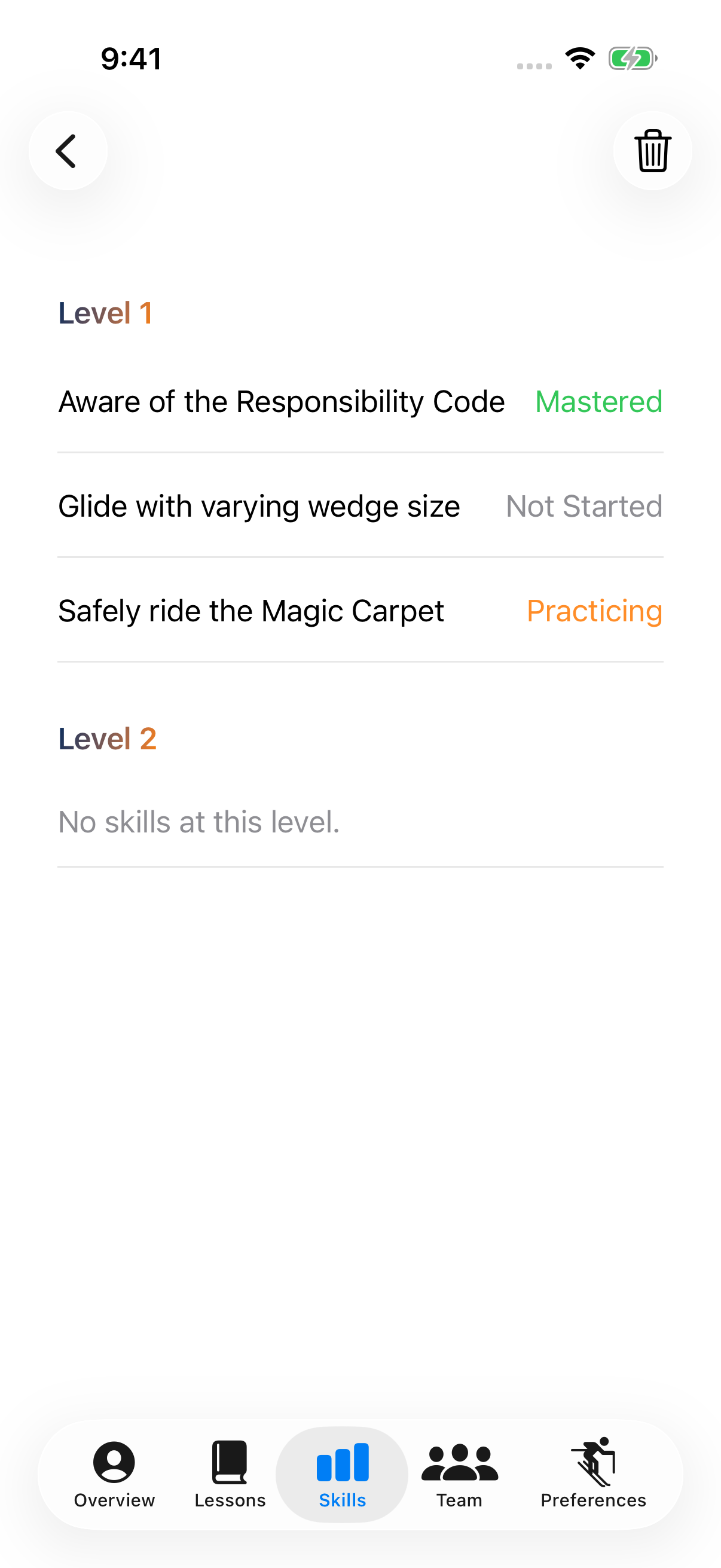
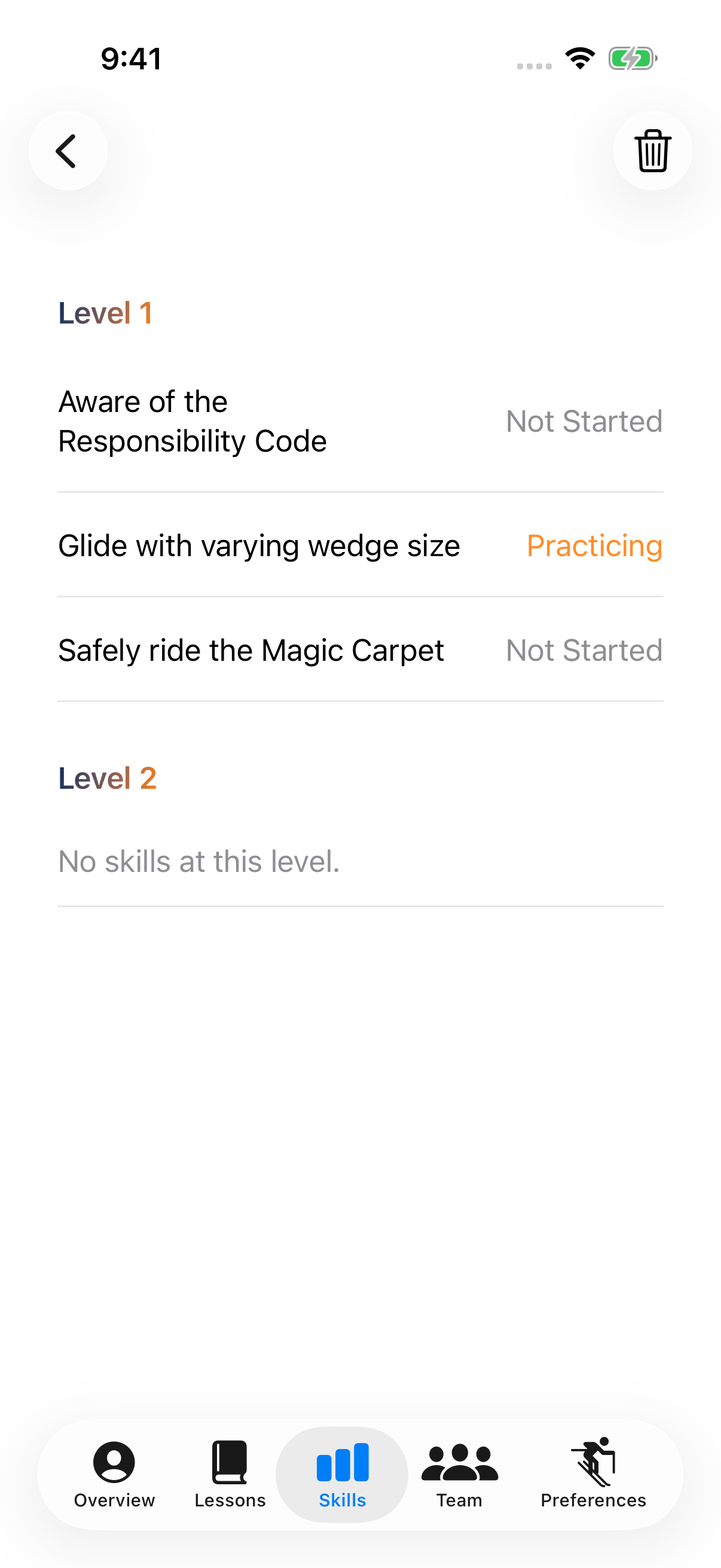
Maya and Noah don't leave with the same learning record. Their individual reports and lesson recaps retain their different skills.

An overall mastery record and what was practiced in one lesson are different views. Maya's existing Mastered entry is retained while her lesson recap records that day's practice.

Maya's individual skill report
MAYA / OVERALL SKILL REPORT
Noah's distinct individual skill report
NOAH / OVERALL SKILL REPORT

THE CONNECTION BETWEEN ROLES

One lesson.
A record that carries forward.

01 / ADMIN

Organize & coach

Match the student with an instructor. Review the completed teaching record and save a lesson evaluation.

02 / INSTRUCTOR

Teach & record

See the group, record individual practice, save observations, and complete the lesson.

03 / CLIENT

Learn & return

Book and check in. Revisit the student’s recap and skill history before the next lesson.

THE PRESENTATION

A conversation.
Not a feature list.

Nine slides to explore the iOS teaching workflow and shape a focused pilot. Present here or open the presentation in its own window.

Watch the complete iPhone walkthrough

4 minutes 31 seconds • original timing • iPhone simulator • fictional demonstration data.

A FOCUSED PILOT, TOGETHER

Start with one
teaching question.

“What should the next instructor know before the next lesson begins?”

Choose one lesson program, agree on a manageable cohort, and compare the same workflow before and during a pilot.

01

Define the workflow

Agree which lesson record, progress handoff or coaching task is worth testing.

02

Make the pilot ready

Complete authorization and privacy checks, device testing and release review before real participant data is used.

03

Measure what matters

Record completeness, instructor effort, useful student history, family access and manager review time. These are proposed measures, not promised results.

FIT BEFORE INTEGRATION

Work with the school.
Don't assume its systems.

SummitPro's proposed focus is the teaching record and its follow-through. Booking, workforce scheduling, payroll and the wider guest experience belong in discovery with Sierra. No existing integration with those systems is being claimed.

Screens shown here are from the verified recovery build, not a claim that this update has shipped to the App Store. This showcase does not collect lesson or family data.